Fix “Your phone number isn’t eligible to connect to the WhatsApp Business Platform”
Meta shows this message, error 3441045, when you connect a WhatsApp Business app number and it wants to see more activity on the app first. Meta publishes no minimum, so the fix is to keep using the number for real customer chats and retry, or connect a different number to the API only.
Whapi, a Shopify app for WhatsApp automation, connects numbers through Meta’s own signup, so Meta makes this decision. This page also covers the other number errors Meta shows during signup and registration.
By the Whapi teamUpdated Checked against Meta’s developer docs on
The short answer
- “Your phone number isn’t eligible to connect to the WhatsApp Business Platform” is Meta’s error 3441045, shown when connecting a WhatsApp Business app number (coexistence).
- Meta’s only stated fix is more activity on the WhatsApp Business app. It doesn’t publish a number of days or messages.
- For the API only, Meta requires a number you own, with a country and area code, that can receive SMS or voice calls and isn’t in use on WhatsApp.
- Meta recommends mobile numbers. IVR numbers that can’t take the registration call aren’t supported.
- New business portfolios can register two numbers; Meta raises that to 20 after verification.
What “phone number not eligible for the WhatsApp Business Platform” means
It means Meta isn’t ready to let this WhatsApp Business app number connect to the API yet. Code 3441045 sits in Meta’s list of errors for onboarding WhatsApp Business app users, the flow also called coexistence. Meta’s resolution reads that more activity on the WhatsApp Business app is needed to help determine eligibility.
Meta runs this check itself, and no provider can override it. Meta also doesn’t say how much activity it wants or how long to wait, so any fixed number of days you read elsewhere is a guess. What you can control is how the number is used, and whether you connect it with the app or to the API only.
Related phone number errors and what each one needs
Several other Meta messages look like an eligibility problem but have different causes. Find yours by its exact wording:
| Meta’s message | When it appears | What to do |
|---|---|---|
| “Your phone number isn’t eligible to connect to the WhatsApp Business Platform.” (3441045) | Connecting a WhatsApp Business app number | Keep using the app and retry later, or use another number on the API. |
| “Your phone number isn’t registered with WhatsApp Business.” (2655095, 2655048) | The number is on personal WhatsApp or not on WhatsApp at all | Register it on the WhatsApp Business app, or enter a number that already is. |
| “This feature is unavailable for phone numbers from this region.” (3441042) | Coexistence isn’t offered for the number’s region | Connect the number, or another one, to the API only. |
| “This number is registered to an existing WhatsApp account. To use this number, disconnect it from the existing account.” | Adding a number for the API only while it’s still on WhatsApp | Delete the WhatsApp account on the phone. Meta says the number can take up to 3 minutes to become available. |
| “Phone Number has been blocked. Please check alert prompt in WhatsApp Manager Overview or follow instructions in Business Support Home.” | WhatsApp blocked the number | Read the alert in WhatsApp Manager or Business Support Home; contact support if you think it’s an error. |
| “Your phone number doesn’t appear to be valid. Please double check it, or try again after 5 minutes.” | Wrong format, or a number type Meta can’t verify | Check the country code. Use a working number verified by a telecom provider; IVR numbers aren’t supported. |
| “You have guessed too many times.” | Too many wrong verification codes | Wait about 12 hours, then come back and verify again. |
| “You have requested your code too many times.” | Too many code requests in a short time | Wait, then request a new code later. |
| “Code Couldn’t Be Sent” or “Code Couldn’t Be Verified” (2388091, 2388093) | Meta couldn’t send or check the verification code | Read the details in the message and retry, or contact Business Support Home if it repeats. |
| “Phone number not registered on the WhatsApp Business Platform.” (133010) | Sending from a number whose registration didn’t finish | Reconnect the number with Connect WhatsApp in Whapi. |
| “Two-step verification PIN incorrect.” (133005) | Registering a number that already has a two-step PIN | Reset the PIN in WhatsApp Manager under the number’s Two-step verification tab, if the tab is shown. |
| “Registration or Deregistration failed because there were too many attempts…” (133016) | More than 10 registration attempts in 72 hours | Wait 72 hours before trying again. |
How to fix it when connecting a WhatsApp Business app number
Use the number as a normal business number in the WhatsApp Business app, make sure the basics are in place, and retry. These steps follow Meta’s stated fix and its coexistence requirements:
Keep using the number for real customer chats
Meta’s stated fix is more activity on the WhatsApp Business app. Keep answering customers from the app as usual. Avoid sending bulk messages to people who didn’t ask for them, which can get a number restricted.Update the WhatsApp Business app
Install the latest version from the App Store or Google Play. Coexistence needs version 2.24.17 or later.Disconnect any old business platform
In the WhatsApp Business app, open Settings > Account > Business Platform. If another platform is listed, disconnect it and wait 15 minutes.Try again from Whapi after a period of normal use
In Whapi, click Connect WhatsApp and choose Connect a WhatsApp Business App. Meta doesn’t say how long to wait, so retry after the number has had more normal activity.If it still fails, connect a different number to the API only
Whapi also works with a number connected to the API only, without the WhatsApp Business app. Use a number that meets Meta’s requirements and isn’t on WhatsApp.
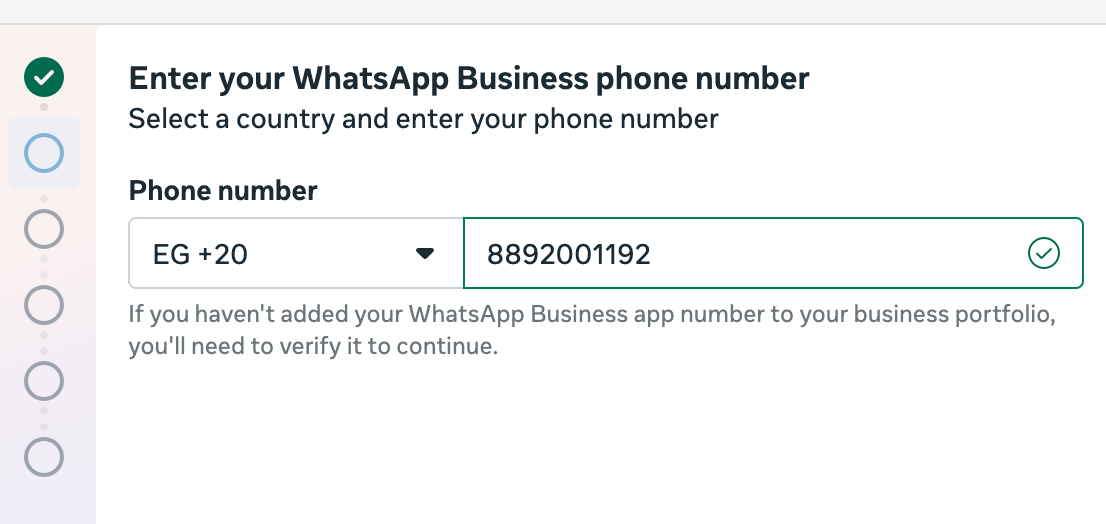
If the number is eligible but the link still fails, the problem is usually on the app side. See WhatsApp coexistence not working for pairing errors and disconnects.
Use a different number on the API only
A number that isn’t on WhatsApp can join the API directly, without coexistence, and the 3441045 check doesn’t apply. Meta’s eligibility requirements for business phone numbers include:
- you own the number;
- it has a country code and area code (short codes aren’t supported);
- it can receive voice calls or SMS to get the verification code.
If the number is already on WhatsApp Messenger or the WhatsApp Business app, delete that account first under Settings > Account > Delete my account. Meta warns that the chat history is lost and the number can’t go back to the app unless it is later removed from the API, so back up chats you need. In Whapi, click Connect WhatsApp, skip the WhatsApp Business app option, add the number and verify it with the code Meta sends.
Which phone numbers work for the WhatsApp Business Platform
Mobile numbers work best, because they receive verification codes by SMS and by voice. Meta rates each number type like this:
| Number type | Code by SMS | Code by voice call |
|---|---|---|
| Mobile (Meta’s recommendation) | Standard | Standard |
| Fixed line (landline) | Not recommended | Standard |
| Toll-free | Not recommended | Standard |
| VoIP | Not recommended | Standard |
| Inbound only | Not recommended | Standard |
| Shared cost, personal number, M2M/IoT | Not recommended | Not recommended |
| Pager | Not supported | Not supported |
Numbers behind an IVR menu can be registered only if they accept calls from international numbers and pass the registration call to a person or a mailbox. If the registration call can’t get through the menu, Meta doesn’t support the number.
“Phone number is currently not reachable by WhatsApp servers”
Meta doesn’t list this exact message in its error references (checked October 20, 2026). The wording points to the verification step: WhatsApp couldn’t reach the number to deliver the code. Meta’s delivery advice for verification codes covers it:
- ask your carrier to enable receiving international SMS and calls on the number;
- keep the phone connected to a cellular network while you wait for the code;
- turn off call forwarding and IVR menus on landlines;
- for VoIP numbers, confirm the provider accepts international SMS and calls;
- if the SMS doesn’t arrive, request the code by voice call instead.
Limits that look like eligibility errors
Some limits block a number even when it is eligible. Check these if the message doesn’t mention eligibility:
- Registered number cap: a new business portfolio can register two numbers. Meta raises the cap to 20 after business verification or once you reach a messaging limit of 2,000.
- Registration attempts: Meta allows 10 registration requests per number in a moving 72-hour window. The eleventh returns error 133016 and blocks registration for 72 hours.
- Banned numbers: a number banned on WhatsApp must be unbanned through WhatsApp’s appeal process before it can be registered.
- Unverified businesses: until verification is complete, Meta limits how many WhatsApp Business accounts you can create (code 2388098).
Notes by country
Meta’s eligibility rules are the same in every country. The practical difference is whether your carrier delivers verification codes sent from abroad.
- If codes don’t arrive on a mobile number, ask your carrier to allow incoming international SMS and calls, which is the first action Meta lists for mobile numbers.
- Business landlines can only take the code by voice call, and they must accept international calls without an IVR menu in the way.
- If Meta returns 3441042 for your number’s region, coexistence isn’t available there. Connect the number to the API only instead.
What you see in Whapi
Every message on this page appears inside Meta’s signup window, which opens when you click Connect WhatsApp in Whapi. Whapi doesn’t add an eligibility check of its own. Once the number connects, it shows a green status in the Whapi dashboard and you can turn on automations such as order confirmation, abandoned cart recovery and shipping updates.
Phone number eligibility questions
It is Meta’s error 3441045. It appears when you try to connect a WhatsApp Business app number to the WhatsApp Business Platform (coexistence) and Meta isn’t ready to allow it. Meta’s stated resolution is that more activity on the WhatsApp Business app is needed to help determine eligibility.
Meta doesn’t publish a waiting period or a number of messages. Keep using the number for normal customer chats in the WhatsApp Business app and try again later. If you need automations sooner, connect a different number to the API only.
No. Meta runs the eligibility check inside its own signup flow, and no provider can override it. Whapi opens Meta’s signup when you click Connect WhatsApp, so the message comes from Meta.
Yes, if it can receive the verification code. Meta recommends mobile numbers. For landlines, toll-free and VoIP numbers, Meta marks SMS codes as not recommended and voice-call codes as standard. Numbers behind an IVR menu must accept international calls and pass the registration call to a person or mailbox.
Meta doesn’t list this exact message in its error references. The wording points to the verification step: WhatsApp couldn’t reach the number to deliver the code. Make sure the number can receive international SMS and calls, the phone is on a cellular network, and call forwarding and IVR menus are off, then request the code again, by voice call if SMS fails.
Only after deleting the WhatsApp account on that number. Meta requires you to delete a WhatsApp Messenger account before the number can be registered for the API, and the chat history on the phone is lost unless you back it up. Many stores use a separate number for the business.
New business portfolios can register two business phone numbers. Meta raises the cap to 20 when the business is verified or reaches a messaging limit of 2,000. Delete an unused number or complete Meta business verification to add more.
Error 133016 means registration or deregistration failed because there were too many attempts for the number in a short time. Meta allows 10 registration requests per number in a moving 72-hour window. After that, the number can’t be registered for the next 72 hours.
Sources
- Meta: Embedded Signup flow errors (3441045 and related) (checked October 20, 2026)
- Meta: Business phone numbers (eligibility, number types, caps) (checked October 20, 2026)
- Meta: Register a business phone number (registration limits) (checked October 20, 2026)
- Meta: WhatsApp error codes (133005, 133010, 133016) (checked October 20, 2026)
- Meta: Onboard WhatsApp Business app users (coexistence requirements) (checked October 20, 2026)
- Meta: Migrate an existing WhatsApp number to a business account (checked October 20, 2026)
Keep reading
- HelpWhatsApp Coexistence Not Working? Causes and FixesFix WhatsApp coexistence setup problems: QR code errors, ineligible numbers, app version issues, missing chat history and sync delays.Read
- HelpMeta Business Verification for WhatsApp: Steps & TipsWhen WhatsApp needs Meta business verification, which documents Meta accepts, how long it takes and what to do if verification is rejected.Read
- ProductWhatsApp Coexistence (2026): Setup, Pricing & LimitsUse the WhatsApp Business App and the WhatsApp API on the same number. How coexistence works, what it costs, its limits, and how to set it up.Read
- ProductWhapi Setup Guide: Connect WhatsApp to ShopifyStep-by-step setup: install Whapi, connect your WhatsApp Business number through Meta, add a payment method and turn on your first automations.Read
- FeaturesOfficial WhatsApp Business API for ShopifyWhapi runs on Meta's official WhatsApp Cloud API with your own number. You pay Meta's message fees directly, with no markup from Whapi.Read
- HelpWhatsApp Business API Errors & FixesFix common WhatsApp Business API problems: error codes, payment issues, undelivered messages, template rejections and coexistence setup.Read
Connect your number and send your next order update on WhatsApp.
Join 5,000+ merchants using Whapi. Install it from the Shopify App Store, connect your WhatsApp Business number and turn on your first automation in minutes. Every plan starts with a 7-day free trial.