WhatsApp coexistence not working: fix pairing errors, sync gaps and disconnects
WhatsApp coexistence links the number you use in the WhatsApp Business app to the WhatsApp Cloud API, so you keep chatting from your phone while automations run in the background. When it fails, the cause is almost always one of a few requirements Meta documents: app version, another platform still connected, eligibility or region.
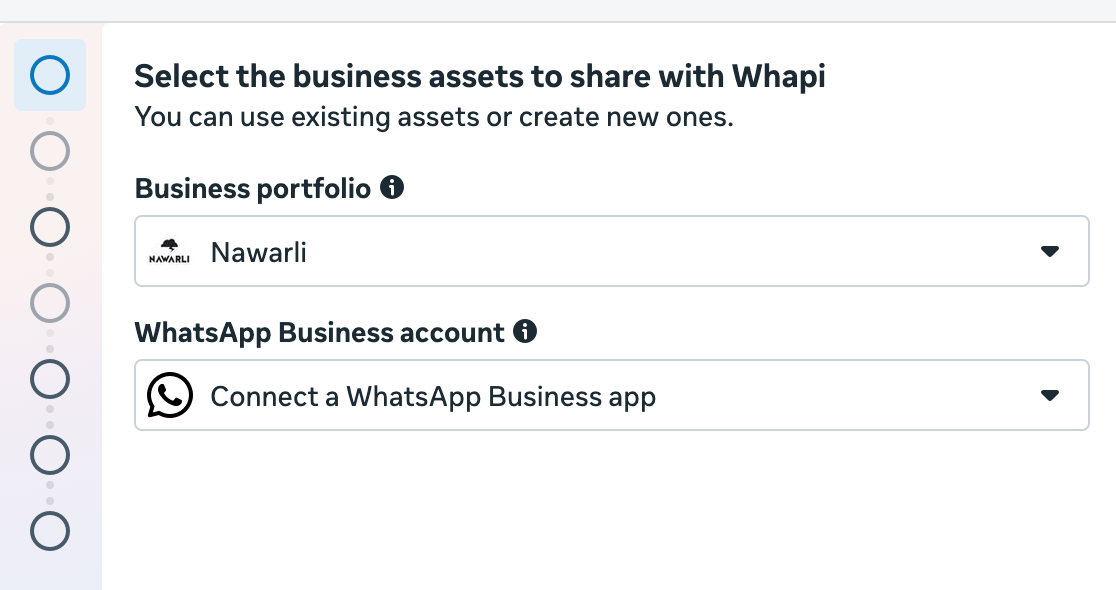
Whapi, a Shopify app for WhatsApp automation, uses coexistence when you choose Connect a WhatsApp Business App during setup. This page covers fixes. For setup and pricing, see WhatsApp coexistence.
By the Whapi teamUpdated Checked against Meta’s developer docs on
The short answer
- Coexistence needs WhatsApp Business app version 2.24.17 or later. Meta returns error 4563015 when the app is too old.
- A number still connected to another business platform must be disconnected in the app under Settings > Account > Business Platform. Meta asks you to wait 15 minutes before trying again.
- “Your phone number isn’t eligible to connect to the WhatsApp Business Platform” (3441045) means Meta wants more activity on the WhatsApp Business app first.
- Meta disconnects coexistence when the phone app is inactive for about 14 days, a linked device for about 30 days, or the app is re-registered or moved to a new phone.
- Chat history covers one-to-one chats from the last 6 months and must sync within 24 hours of connecting. Group chats never sync.
WhatsApp coexistence not working: check these first
Most coexistence failures come down to six requirements, and checking all of them takes a couple of minutes. The first five are Meta’s; the last one is about how Whapi’s setup opens Meta’s window.
| Check | What Meta requires | How to fix it |
|---|---|---|
| App version | WhatsApp Business app 2.24.17 or later | Update the app from the App Store or Google Play. |
| App type | The number is registered on the WhatsApp Business app | Personal WhatsApp numbers fail with 2655095. Move the number to the WhatsApp Business app first. |
| Other platforms | No other business platform connected | Disconnect it under Settings > Account > Business Platform, then wait 15 minutes. |
| Eligibility | Enough activity on the WhatsApp Business app | Keep using the number for real chats, then retry. Number not eligible |
| Region | Coexistence available for the number’s region | If Meta says the feature is unavailable for your region, use the API with a different number. |
| Browser | Meta’s signup opens in a popup | Run Whapi’s setup on a computer and allow popups for your Shopify admin. |
“Error while pairing Cloud API” and other pairing errors
“Error while pairing Cloud API” means the WhatsApp Business app and the Cloud API didn’t finish linking. Meta doesn’t document that phrase on its own, but its signup error reference lists the specific messages this flow can show, and each one has a known fix:
| Meta’s message | Code | Fix |
|---|---|---|
| “Update your WhatsApp Business App to the latest version to use this phone number.” | 4563015 | Update the app to 2.24.17 or later. |
| “Your phone number isn’t eligible to connect to the WhatsApp Business Platform.” | 3441045 | Meta needs more activity on the app. See the fix. |
| “Your phone number isn’t registered with WhatsApp Business.” | 2655095, 2655048 | Register the number on the WhatsApp Business app, or enter a number that already is. |
| “This feature is unavailable for phone numbers from this region.” | 3441042 | Use a number from another region, or connect a separate number to the API only. |
| “The business is already sharing this WhatsApp Business account with a partner.” | 2655093 | Disconnect the current partner in the app first. Switching providers |
| “This phone number is already registered with the product.” | 3441049 | Settings > Account > Business Platform, select the platform, tap Disconnect, wait 15 minutes. |
| “Please disconnect your business platform to continue.” | 2655094 | Same fix: disconnect in the app and wait 15 minutes before retrying. |
| “The phone number you have entered is not associated with the business you selected.” | 3441041 | Pick the business portfolio that owns the number, or unlink the number from the other business. |
| “The phone number is already linked to a Facebook Page.” | 2655082 | In Meta Business Suite, go to Settings > Accounts > Pages and remove the Page, or use another number. |
| “This feature is not available for accounts using marketing messages.” | 3441047 | Select a different WhatsApp Business account in the signup. |
Fix a pairing error step by step
Update the WhatsApp Business app
Install the latest WhatsApp Business app from the App Store or Google Play. Meta requires version 2.24.17 or later for coexistence.Disconnect any old business platform
In the WhatsApp Business app, open Settings > Account > Business Platform. If a platform is listed, select it and tap Disconnect, then wait 15 minutes as Meta instructs.Use the phone where the number is registered
Keep the WhatsApp Business app open on the main phone for this number, with a stable internet connection, until the connection finishes.Start again from Whapi on a computer
Open Whapi in your Shopify admin on a computer, allow popups, click Connect WhatsApp and choose Connect a WhatsApp Business App.Match the exact message Meta shows
If the connection fails again, read the message in Meta’s window and find it in the pairing error table. Each one has its own fix.Send the message to Whapi support
If none of the fixes work, email Whapi support with a screenshot of the error. If the number can’t use coexistence, Whapi can also run on a separate number connected to the API only.
QR code or verification code not working
The link finishes inside the WhatsApp Business app, so a code that “does nothing” usually means the app side hasn’t been completed. In Meta’s flow, after you enter your number:
- Meta shows a code in the signup window.
- Your WhatsApp Business app receives a message from the official Facebook Business account. Tap Connect.
- Tap Connect to the Business Platform.
- Choose whether to share your chat history, then confirm.
- Enter or scan the code to finish.
If the message from Facebook doesn’t arrive, check that the phone is online and the app is open, then start the connection again. You can also open the app’s Settings > Account > Business Platform screen and connect from there. If Meta says “You have guessed too many times”, wait about 12 hours before you retry, as Meta advises. “You have requested your code too many times” also means waiting before you request another code.
Coexistence keeps disconnecting
Meta disconnects the API side of coexistence for specific, documented reasons, and it tells the connected platform which one applied. Your WhatsApp Business app keeps working; only automations stop until you reconnect.
| What happened | Meta’s reason | What to do |
|---|---|---|
| The WhatsApp Business app on the main phone wasn’t used for about 14 days | Primary device inactivity | Open the app on the main phone regularly, then reconnect in Whapi. |
| A linked device wasn’t used for about 30 days | Companion device inactivity | Remove linked devices you don’t use, or open them regularly. |
| The app was moved to a new phone, reinstalled or re-registered | Re-registered on a new device | During registration, keep the pre-checked option to reconnect your connected products. |
| The business changed its phone number | Number change | Connect the new number in Whapi. |
| The number was registered on personal WhatsApp | Business downgrade | Move the number back to the WhatsApp Business app, then reconnect. |
| The account was deleted or restricted by Meta | Account disconnected | Check Business Support Home, then reconnect once the account is active. |
After a phone change or reinstall, Meta lists your previously connected products with a pre-checked opt-in while you register. If you leave it checked, Meta restores the connection in the background, usually within a few minutes. API messages can’t be sent during that time, and linked devices such as WhatsApp Web have to be linked again by hand. So avoid reinstalling the app or switching phones in the middle of a busy sales day.
Linked devices, WhatsApp Web and Windows
Coexistence works with up to four linked devices. Meta supports every companion app except WhatsApp for Windows and WhatsApp for WearOS.
- When you connect, Meta unlinks every linked device. Link the ones you need again afterwards.
- Messages from a customer who uses an unsupported companion app may not reach the connected platform, and your messages viewed on an unsupported device show placeholder text asking the customer to open their main phone.
- Meta can also report error 131060 the first time a new customer messages you, often from a Click to WhatsApp ad. Meta says it usually clears within seconds; check the WhatsApp Business app for that message.
Every linked device is another session that has to stay active, so link only the devices you use. If several people answer customers, Whapi’s Team Inbox gives each agent access without extra linked devices.
Chat history or contacts didn’t sync
Meta lets the connected platform sync your contacts and the last 6 months of one-to-one chats once, within 24 hours of connecting, and only if you agreed to share chat history in the app.
- Group chats are never synced.
- If you chose not to share history, no past chats are shared.
- Keep the WhatsApp Business app open and online while it syncs. Meta says it can take several minutes, depending on how much history there is.
- If the 24-hour window passes or the sync fails, Meta requires disconnecting and connecting again before history can be synced.
New messages are different: anything you send from the WhatsApp Business app after connecting is mirrored to the connected platform, and automated messages appear in the app’s chat history.
Features that change in the WhatsApp Business app
Connecting to the API turns off a few WhatsApp Business app features and leaves the rest alone. This is how Meta lists the changes:
| Feature | After you connect |
|---|---|
| One-to-one chats | Keep working and are mirrored between the app and the API. Editing and deleting messages is supported. |
| Broadcast lists | Disabled. Existing lists become read-only and new ones can’t be created. |
| Disappearing messages | Turned off for one-to-one chats. |
| View once messages | Disabled for one-to-one chats. |
| Live location | Disabled for one-to-one chats. |
| Group chats | Keep working in the app, but aren’t synced to the API. |
| Voice and video calls | No change in the app. |
| Catalog, labels, quick replies, greeting and away messages | No change in the app. |
For bulk messages after broadcast lists are disabled, send WhatsApp broadcasts from Whapi as approved marketing templates to customers who opted in.
Messages from the app and messages from Whapi
Messages you send from the WhatsApp Business app stay free. Messages sent through the Cloud API, such as Whapi’s order confirmations, are charged at Meta’s per-message rates on the WhatsApp API pricing page. The 24-hour customer service window applies only to API messages. A number used with both the app and the API has a fixed throughput of 20 messages per second.
Reconnect coexistence from Whapi
When the connection drops, reconnect from Whapi and leave the WhatsApp Business app installed, because a reinstall disconnects the API again. In the Whapi dashboard inside Shopify, a connected number shows a green status. If it doesn’t, click Connect WhatsApp, choose Connect a WhatsApp Business App and follow the steps in the app.
To end coexistence completely, disconnect in the WhatsApp Business app under Settings > Account > Business Platform. Meta doesn’t let a platform deregister a number that is used with both the app and the API, so the disconnect always happens in the app.
Coexistence troubleshooting questions
Most failures come from five requirements Meta documents: the WhatsApp Business app must be version 2.24.17 or later, the number must be registered on the WhatsApp Business app, it must not be connected to another business platform, Meta must consider it eligible, and coexistence must be available for its region. Meta’s signup shows a specific message for each, so read the exact wording and apply the matching fix.
It means the WhatsApp Business app and the WhatsApp Cloud API did not finish linking during coexistence setup. Update the app to version 2.24.17 or later, disconnect any old platform under Settings, Account, Business Platform, wait 15 minutes, keep the app open on the main phone and start the connection again.
Meta requires WhatsApp Business app version 2.24.17 or higher. If your app is older, Meta’s signup shows error 4563015, “Update your WhatsApp Business App to the latest version to use this phone number.”
Meta disconnects the API side of coexistence when the main phone’s WhatsApp Business app is inactive for about 14 days, a linked device is inactive for about 30 days, the app is re-registered or moved to a new phone, the number changes, or the number moves to personal WhatsApp. After a phone change, keep the pre-checked option to reconnect your connected products and Meta restores the link within a few minutes.
Yes. Meta supports up to four linked devices on a coexistence number, except WhatsApp for Windows and WhatsApp for WearOS. When you connect, Meta unlinks all linked devices, so link WhatsApp Web again afterwards. For a team that shares the number, a shared inbox is more reliable than many linked devices.
Meta only shares chat history if you agreed to share it during the connection. It covers one-to-one chats from the last 6 months, never group chats, and the sync must run within 24 hours of connecting. If that window passed, Meta requires disconnecting and connecting again to retry.
Meta disables broadcast lists in the WhatsApp Business app once the number is connected to the API. Existing lists become read-only and you can’t create new ones. Bulk messages then go out through the connected platform as approved marketing templates.
No. Meta says messages you send from the WhatsApp Business app stay free after you connect. Messages sent through the Cloud API, such as automations from Whapi, are charged at Meta’s per-message rates, and the 24-hour customer service window only applies to those API messages.
Sources
- Meta: Onboard WhatsApp Business app users (coexistence) (checked October 20, 2026)
- Meta: Reconnect offboarded coexistence clients (checked October 20, 2026)
- Meta: Embedded Signup flow errors (checked October 20, 2026)
- Meta: Support for onboarded clients (switching partners) (checked October 20, 2026)
Keep reading
- ProductWhatsApp Coexistence (2026): Setup, Pricing & LimitsUse the WhatsApp Business App and the WhatsApp API on the same number. How coexistence works, what it costs, its limits, and how to set it up.Read
- HelpPhone Number Not Eligible for WhatsApp Business PlatformSeeing "your phone number isn't eligible to connect to the WhatsApp Business Platform"? What it means and how to make the number eligible.Read
- HelpMove Your WhatsApp API Number to WhapiSwitching from Wati, Zoko, AiSensy or another provider? How to move your WhatsApp Business API number to Whapi without losing it.Read
- FeaturesWhatsApp Team Inbox for Shopify StoresOne shared WhatsApp inbox for unlimited agents, with auto-assignment, Shopify order context, AI conversation labels and agent performance metrics.Read
- ProductWhapi Setup Guide: Connect WhatsApp to ShopifyStep-by-step setup: install Whapi, connect your WhatsApp Business number through Meta, add a payment method and turn on your first automations.Read
- HelpWhatsApp Business API Errors & FixesFix common WhatsApp Business API problems: error codes, payment issues, undelivered messages, template rejections and coexistence setup.Read
Keep your WhatsApp Business app and automate the rest.
Whapi connects your WhatsApp Business app number to Meta’s official API, so order confirmations and shipping updates go out automatically while you keep chatting from your phone.