Migrate your WhatsApp API number to Whapi and keep the same number
You can move a WhatsApp Business API number from Wati, Zoko, AiSensy, Interakt or any other provider to Whapi without changing the number. Since Meta’s 2026 account update, you don’t migrate the number at all: you share your existing WhatsApp account with Whapi, add a payment method and set up your templates again.
Whapi is a Shopify app for WhatsApp automation on Meta’s official WhatsApp Business API. Plan for a short switchover while Meta reviews your new templates.
Used by 5,000+ merchantsRated 5 stars by 39 merchants7-day free trialBuilt for Shopify
By the Whapi teamUpdated Checked against Meta’s developer docs on
The short answer
- Your phone number, display name, quality rating and messaging limit stay with the number when you move to Whapi.
- Meta no longer migrates numbers between providers. Under its new account model (rolling out from September 23, 2026, with all businesses due by mid-October 2026), you share your WhatsApp account with Whapi and Meta creates a separate Messaging account for Whapi.
- Templates and the payment method don’t carry over automatically. Whapi submits new templates for Meta to review, and you add a card to the new Messaging account.
- A WhatsApp Business app number connected to another provider must be disconnected in the app first. Meta asks you to wait 15 minutes before connecting it to Whapi.
- Expect a short gap while Meta reviews your templates. On API-only numbers, the old provider can keep sending until Whapi is live.
Which move applies to you
The steps depend on how your number is connected today. Check this first, because the two common setups move in opposite orders.
| Your number today | How it moves to Whapi | What to plan for |
|---|---|---|
| On the API with another provider, no WhatsApp Business app on the phone | Share your existing WhatsApp account with Whapi in Meta’s signup. See API-only steps. | Your old provider keeps working until you remove it. |
| On the WhatsApp Business app and connected to another provider (coexistence) | Disconnect the old platform in the app, wait 15 minutes, connect to Whapi. See coexistence steps. | Automations pause between disconnecting and Whapi going live. |
| On the WhatsApp Business app, not connected to any provider | Nothing to migrate. Connect it with Whapi’s coexistence setup. | You keep using the app on your phone. |
| On personal WhatsApp (WhatsApp Messenger) | Meta requires deleting that WhatsApp account before the number can join the API, or use a different number. | Chats on the phone are lost unless you back them up. |
Not sure which one you have? Open the WhatsApp Business app on the phone and go to Settings > Account > Business Platform. If a platform is listed there, your number uses coexistence. If the number isn’t in any WhatsApp app and your provider still sends messages from it, it runs on the API only.
Why WhatsApp API numbers no longer migrate between providers
WhatsApp API numbers no longer migrate because Meta split the old WhatsApp Business account in two. Meta began rolling out its new account model on September 23, 2026 and said it would reach all businesses by mid-October 2026, migrating them in stages.
- The WhatsApp account holds your phone number, business profile and display name. You own it, and you can share it with more than one provider.
- The Messaging account holds templates, billing and webhooks. Each provider gets its own, so templates and charges stay separate.
Meta’s documentation says phone number migration between partners isn’t supported under this model. A business that wants a new provider shares its existing WhatsApp account instead, so the number stays where it is and existing conversations carry on. Sharing is additive: whether you keep or remove your old provider afterwards is your choice.
While two providers are on the same number, they share its throughput and your business portfolio’s messaging limit, and each one bills its own Messaging account.
What carries over when you migrate your WhatsApp API number
Everything tied to the phone number or your business portfolio stays. Everything tied to the old provider’s Messaging account or inbox stays behind.
| Item | Moves with the number? | Notes |
|---|---|---|
| Phone number | Yes | It stays in your WhatsApp account. |
| Display name and business profile | Yes | Both belong to the WhatsApp account. |
| Quality rating | Yes | Meta tracks it on the phone number. |
| Messaging limit | Yes | Set for your business portfolio and shared by every provider on it. |
| Business verification | Yes | It belongs to the business portfolio. |
| Message templates | No | Templates live in each Messaging account. Whapi submits new ones and Meta reviews each. |
| Payment method | No | Add a card to the Messaging account Meta creates for Whapi. |
| Chats in your old provider’s inbox | No | They stay in that provider’s system. Export them before you cancel. |
| Chats in the WhatsApp Business app | They stay on your phone | Meta’s connection flow asks whether to share chat history with the new platform. |
How to move an API-only WhatsApp number to Whapi
For a number that runs only on the API, connect Whapi first and remove the old provider last. That order keeps messages going to your customers while Meta reviews your new templates.
Write down what your old provider sends
List the automations and templates that are live today, such as order confirmations, abandoned cart reminders and shipping updates, and copy the wording of each template. Export any contacts or chats you want to keep.Install Whapi and click Connect WhatsApp
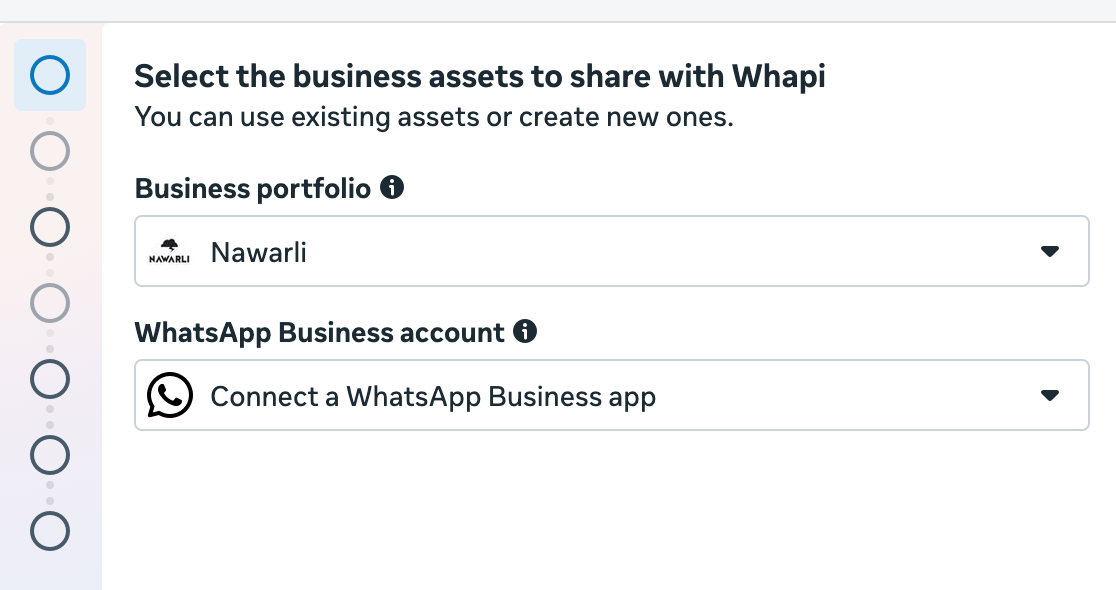
Install Whapi from the Shopify App Store, open it in your Shopify admin and click Connect WhatsApp on a computer with popups allowed. Meta’s signup window opens.Choose your existing business and phone number
In Meta’s signup, select the business portfolio that owns the number, then your existing WhatsApp account and phone number. Do not add a new number. Review what you share with Whapi and confirm.Add a payment method to the new Messaging account
Meta creates a separate Messaging account for Whapi with its own billing. Add a card to it in WhatsApp Manager so Meta can bill the messages Whapi sends. The payment method guide shows each screen.Set up your automations and wait for template approval
Turn on the automations you need in Whapi and paste in your template wording. Whapi submits each template to Meta, and Meta reviews it and assigns a category. When a template is approved, send a test message to your own phone.Switch off the same automations at your old provider
Once Whapi’s templates are approved and tested, turn off the matching automations at your old provider so customers don’t get the same message twice.Remove the old provider and cancel its plan
In Meta Business Suite, go to Settings > Accounts > WhatsApp Accounts, select the account that holds your number and remove the old provider’s access. Check the Messaging Accounts tab too and remove the old provider from any Messaging account you own. Then cancel the old subscription.
How to move a WhatsApp Business app number (coexistence)
A WhatsApp Business app number connects to one provider at a time in Meta’s coexistence flow, so disconnect the old one first. If you skip this, Meta stops the signup with error 2655093, “The business is already sharing this WhatsApp Business account with a partner.”
Back up your chats
Back up the WhatsApp Business app on your phone before you change its connection, as Meta recommends.Copy your template wording and pause automations
Copy the text of the templates your old provider sends, then pause its automations. They stop anyway once you disconnect.Disconnect the old platform in the WhatsApp Business app
In the WhatsApp Business app, go to Settings > Account > Business Platform. Select the connected platform and tap Disconnect.Wait 15 minutes
Meta asks you to wait 15 minutes after disconnecting before you connect the number to a new platform.Connect the number to Whapi
In Whapi, click Connect WhatsApp and choose Connect a WhatsApp Business App. Enter your number, then follow the prompts in the app: a message arrives from Facebook, tap Connect and choose whether to share your chat history.Check the payment method, set up automations and test
Make sure the Messaging account shared with Whapi has a payment method in WhatsApp Manager, turn on your automations in Whapi with the template wording you copied, wait for Meta to approve the templates and send a test message.
Your WhatsApp Business app keeps working on the phone throughout, so you can still answer customers by hand. Only automations pause. If Meta shows an error about a previous partner’s credit line, Meta’s fix is to back up your messages, disconnect from the WhatsApp Business app, reconnect, and run the coexistence signup again. More fixes are in WhatsApp coexistence not working.
How long the switch takes
Connecting your number takes a few minutes. Most of the wait is the review of your new templates, which Meta says can take up to 24 hours. Because Meta controls signup and template review, Whapi can’t promise a switch with zero downtime.
- API-only numbers: the old provider keeps sending until you remove it, so customers can keep getting messages. Avoid running the same automation on both for long, or customers get duplicates.
- WhatsApp Business app numbers: automations stop when you disconnect the old provider and restart once your Whapi templates are approved. Switch at a quiet time of day, and have your template wording ready to paste.
The WhatsApp message templates for order confirmations, shipping updates and cart recovery are ready to copy if you want to start from a tested wording instead of your old one.
Leaving Wati, Zoko, AiSensy or Interakt
Meta’s steps are the same whichever provider you leave. The provider-specific part is getting your data out and ending the plan:
- Copy the wording of every approved template, because templates don’t move between Messaging accounts.
- Export contacts, opt-in lists and chat history you want to keep from the provider’s dashboard.
- Cancel the plan where you pay for it: in the provider’s dashboard, or in your Shopify admin if you subscribed through the Shopify App Store.
- Remove the provider from your Messaging account and WhatsApp account in Meta Business Suite.
Comparing before you switch? See Whapi vs Wati, Zoko, AiSensy and Interakt.
Getting help with the move
Email info@usewhapi.com or message us on WhatsApp before you disconnect anything. Tell us which provider you are leaving and whether the number is on the WhatsApp Business app, and we will confirm which steps apply. Whapi has a 7-day free trial, so you can set up and test your automations before you cancel the old plan.
Switching to Whapi: questions
Yes. Under Meta’s new account model, which Meta began rolling out on September 23, 2026 with all businesses due by mid-October 2026, a WhatsApp Business API number doesn’t move between providers at all. You share your existing WhatsApp account with Whapi through Meta’s signup, and the number, display name and quality rating stay as they are. You then add a payment method and set up new templates in Whapi.
For a number that runs only on the API, no. Meta lets you share the same WhatsApp account with more than one provider, so you can connect Whapi first and remove the old provider once Whapi is live. For a WhatsApp Business app number (coexistence), yes: disconnect the old platform in the app under Settings, Account, Business Platform, wait 15 minutes, then connect to Whapi.
Not automatically. Meta keeps templates inside each provider’s Messaging account and doesn’t share them between accounts. Copy the wording of your approved templates before you switch, then set them up in Whapi. Whapi submits them to Meta, and Meta reviews each one and assigns its category again.
Chats stored in your old provider’s inbox stay in that provider’s system, so export what you need before you cancel. If your number runs on the WhatsApp Business app, your chats stay on your phone, and Meta’s connection flow asks whether you want to share chat history with the new platform.
No. Meta tracks the quality rating on the phone number and sets the messaging limit for the whole business portfolio, and neither changes when you add a provider. Your templates are new in Whapi, so each one builds its own history with Meta.
Connecting takes a few minutes. Most of the wait is Meta’s review of your new templates, which Meta says can take up to 24 hours. On an API-only number your old provider can keep sending in the meantime. On a WhatsApp Business app number, automations pause from the moment you disconnect the old provider until your Whapi templates are approved.
It is Meta’s error 2655093. Your WhatsApp Business app number is still connected to another provider, and Meta doesn’t support switching partners inside that signup flow. Disconnect the current partner in the WhatsApp Business app under Settings, Account, Business Platform, wait 15 minutes, then connect to Whapi again.
For API-only numbers, Meta’s new account model allows it. Each provider gets its own Messaging account with separate templates and billing, while all of them share the number’s throughput and the business portfolio’s messaging limit. For WhatsApp Business app numbers, Meta’s coexistence flow connects one partner at a time.
Sources
- Meta: Updates to WhatsApp Business accounts (new account model) (checked October 20, 2026)
- Meta: Onboarding changes under the new account model (checked October 20, 2026)
- Meta: Migrate a phone number via Embedded Signup (not supported on the new model) (checked October 20, 2026)
- Meta: Embedded Signup flow errors (2655093, 2655094, 3441049) (checked October 20, 2026)
- Meta: Onboard WhatsApp Business app users (coexistence) (checked October 20, 2026)
- Meta: Support for onboarded clients (switching partners, credit lines) (checked October 20, 2026)
- Meta: Migrate an existing WhatsApp number to a business account (checked October 20, 2026)
Keep reading
- CompareBest WhatsApp Apps for Shopify (2026): ComparedAn honest comparison of WhatsApp apps for Shopify: Whapi, Wati, Zoko, AiSensy, Interakt, CK, Dondy and Meta’s free app. Written by Whapi.Read
- HelpWhatsApp Coexistence Not Working? Causes and FixesFix WhatsApp coexistence setup problems: QR code errors, ineligible numbers, app version issues, missing chat history and sync delays.Read
- HelpAdd a Payment Method for WhatsApp in Meta (Error 131042)Messages failing with error 131042? Add or fix the payment method on your WhatsApp Business account in Meta, step by step, with card tips.Read
- ProductWhatsApp Coexistence (2026): Setup, Pricing & LimitsUse the WhatsApp Business App and the WhatsApp API on the same number. How coexistence works, what it costs, its limits, and how to set it up.Read
- ProductWhapi Setup Guide: Connect WhatsApp to ShopifyStep-by-step setup: install Whapi, connect your WhatsApp Business number through Meta, add a payment method and turn on your first automations.Read
- HelpWhatsApp Business API Errors & FixesFix common WhatsApp Business API problems: error codes, payment issues, undelivered messages, template rejections and coexistence setup.Read
Bring your WhatsApp number to Whapi.
Join 5,000+ merchants using Whapi. Install it from the Shopify App Store, connect your WhatsApp Business number and turn on your first automation in minutes. Every plan starts with a 7-day free trial.