Fix WhatsApp error 131042: “There was an error related to your payment method”
Error 131042 means Meta couldn’t charge the account your WhatsApp messages are billed to, so it stopped sending them. To fix it, add a valid card in WhatsApp Manager, make it the default, and check the account settings Meta lists for this code.
Whapi, a Shopify app for WhatsApp automation, sends messages through Meta’s official WhatsApp Business API. You pay Meta’s message fees directly with your own card, so the card is saved in your Meta account.
By the Whapi teamUpdated Checked against Meta’s developer docs on
The short answer
- Error 131042 is Meta’s payment error for WhatsApp. Meta’s message is “There was an error related to your payment method”, and its calling docs name it the “Business eligibility payment issue”.
- The fix: in WhatsApp Manager, open Overview, click Add payment method, add a credit or debit card and approve your bank’s code.
- Meta’s other listed causes are a credit line over its limit, a suspended or deleted account, a time zone or currency that was never set, and a pending partner request.
- Since October 1, 2026, accounts without a payment method get only 1,000 free service messages per business number each month. After that, Meta stops delivering them.
- Whapi’s plan is billed through Shopify. Meta bills message fees to your card, with no markup from Whapi.
What WhatsApp error 131042 means
Error 131042 means Meta tried to bill a message to your Messaging account and couldn’t, so it didn’t send the message. Meta’s error reference describes it as “There was an error related to your payment method”, and Meta’s calling documentation refers to the same problem as the “Business eligibility payment issue”.
In Meta’s account model, the Messaging account holds your templates and your payment method, while the WhatsApp account holds your phone number. When Whapi sends an order confirmation or a shipping update, Meta charges the Messaging account linked to Whapi. If that account has no working payment method, every paid message fails. Meta lists eight common causes:
| Meta’s cause | What it means | Where to fix it |
|---|---|---|
| Payment account is not attached to a WhatsApp Business account | No card on the Messaging account that sends your messages. | WhatsApp Manager > Overview > Add payment method |
| Credit line (Payment Account) not set or active | A card was removed, expired or never became active. | Add a new card and make it the default. |
| Credit line is over the limit | Applies when a provider pays Meta for you on its own credit line. | Ask that provider, or move billing to your own card. |
| WhatsApp Business account is suspended | Meta restricted the account. | Business Support Home, then appeal if it’s a mistake. |
| WhatsApp Business account is deleted | The account Whapi sends from no longer exists. | Reconnect WhatsApp in Whapi. |
| Timezone not set | The account is missing a time zone. | Contact Whapi support or Meta Direct Support. |
| Currency not set | The account is missing a billing currency. | Contact Whapi support or Meta Direct Support. |
| MessagingFor request (On Behalf Of) is pending or declined | A partner request on the account was never accepted. | Accept the pending request in Meta Business Suite, or ask the provider to send it again. |
What changed on October 1, 2026
Since October 1, 2026, a missing payment method affects more than template messages. Meta started charging again for messages that had been free, and it stops delivering service messages for accounts that can’t be billed:
- Service messages (free-form replies inside the 24-hour customer service window) are charged after the first 1,000 per business phone number each month. The free tier resets every month at midnight in the Messaging account’s time zone and unused messages don’t roll over.
- No payment method: Meta delivers service messages inside the free tier and stops delivering them once it is used up.
- Utility templates sent inside an open window are charged at the normal utility rate. They were free from July 1, 2025 to September 30, 2026.
- Template messages in every category still need a valid payment method, as before. Meta’s support docs say that if you can’t send template messages, you most likely haven’t added one.
Our post on the October 2026 WhatsApp pricing change explains the new charges in more detail.
How to add a payment method for WhatsApp in Meta
You add the card in WhatsApp Manager: open the Overview page, click Add payment method and complete the flow. Meta’s Help Center article Add a credit card to your WhatsApp Business Platform account covers the same flow. Payment methods also appear in Meta’s Billing Hub.
Open the payment step from Whapi or WhatsApp Manager
After you connect your number, Whapi shows a second setup step asking you to add a payment method, which takes you to Meta. You can also go straight to the WhatsApp Manager Overview page.Select the business that owns your WhatsApp number
If you manage more than one business portfolio, switch to the one that owns the number you connected to Whapi. Each Messaging account has its own payment method, so a card saved on another account does not pay for Whapi messages.Click Add payment method and enter your card
Click Add payment method and complete the flow with a credit or debit card. If Meta asks for business or tax details for your country, fill them in.Approve the code from your bank
Your bank may send a one-time password to confirm the card. Enter it exactly. If verification fails, Meta shows a “hasn’t been verified” message and the card is not saved.Make sure the card shows the Default label
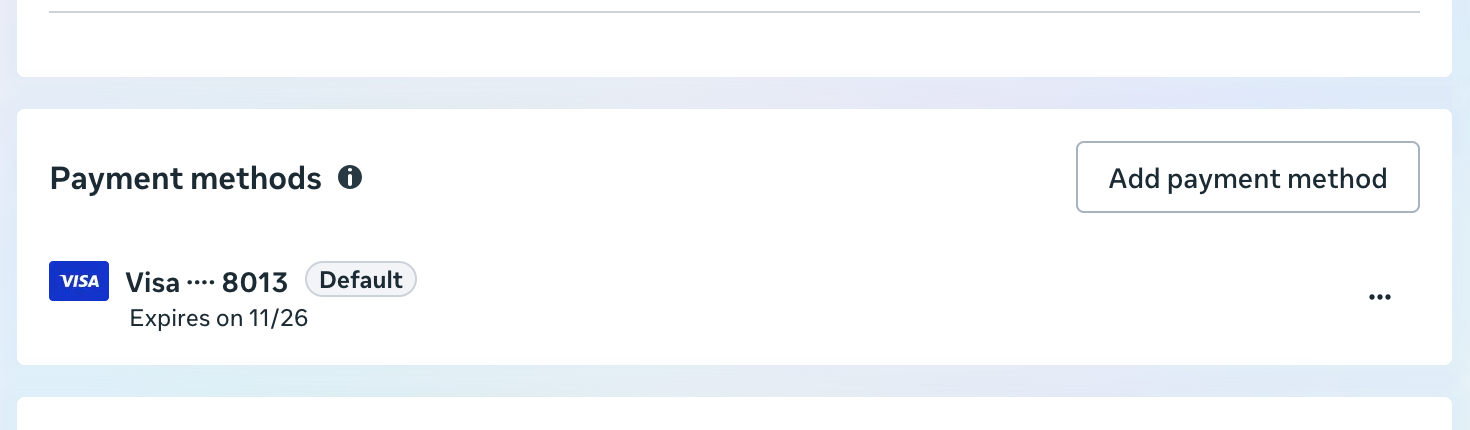
In the Payment methods list, the card you want Meta to charge should carry the Default label. If another card is the default, change it from the menu next to the card.Send a test message from Whapi
Use Send Test Message in Whapi with a personal WhatsApp number that is different from your business number. If the test arrives, Meta can bill the account again.
When Meta won’t accept your card
Meta documents four card errors in Meta Business Suite, and each one points to the card or the bank. Here is Meta’s wording and its suggested fix:
| Meta’s message | What to do |
|---|---|
| “[Card] hasn’t been verified. We weren’t able to complete verification, please try again.” | Re-enter the one-time password from your bank carefully and make sure you can receive it. Ask your bank whether it blocked the card, try again after a few days, or use another card. |
| “Couldn’t save payment method. You’ve already saved this payment method to the maximum number of ad accounts.” | Use a different card. Meta says the number of accounts that can share one card cannot be raised. |
| “Request Not Completed. We noticed something unusual and, for your security, this request couldn’t be completed.” | Ask your bank whether it has placed restrictions on the card, or use another card. |
| “Something went wrong. We couldn’t complete your request. Please try again later.” | Try again in a few days, or use another card. |
Card added but messages still fail with 131042
If a valid card is saved and messages still fail, the card is usually on a different Messaging account, an old provider’s credit line is still attached, or the account has a problem only Meta can clear.
The card is on a different Messaging account
In Meta’s new account model, each provider you work with usually gets its own Messaging account, and each Messaging account has its own payment method. A card saved for another provider, or for an ad account, does not pay for messages Whapi sends. In Meta Business Suite, open Settings > Accounts > Messaging Accounts and check the account shared with Whapi.
An old provider’s credit line is still attached
Meta notes that businesses who used a partner before, and still share that partner’s credit line, can see errors when they switch. For a WhatsApp Business app number, Meta’s fix is to back up your messages, disconnect the number from the old platform in the WhatsApp Business app, reconnect, and run the coexistence signup again. The guide to moving your number to Whapi has the full steps.
The account is suspended or deleted
A suspended account needs Meta’s review: open Business Support Home, read the alert and appeal if you think it’s wrong. If the WhatsApp Business account was deleted, reconnect your number with Connect WhatsApp in Whapi.
Open a billing ticket with Meta
When the settings look right, Meta’s billing team has to check the account. Open a ticket in Meta Direct Support with the topic Dev: Billing, Credit & Pricing and the request type Credit Card Billing. For a specific charge, copy the transaction ID from Billing & payments (under Accounts > Messaging accounts or Payment activity) into the ticket. If the billing topic doesn’t appear, Meta says to ask your provider to open the ticket; email info@usewhapi.com and we will.
Billing currency notes by country
Meta’s billing rules are the same in every country. What changes is the currency you can be billed in, and how your bank treats online card payments.
- Euros and pounds: EUR and GBP are available as billing currencies, as well as USD. Meta publishes its own EUR rate cards for Germany, France, Italy, Spain and the Netherlands and a GBP card for the United Kingdom; theWhatsApp API pricing page lists them.
- Saudi Arabia and the UAE: Meta added SAR and AED as billing currencies on April 1, 2026, next to USD.
- Pakistan: Meta has no Pakistani rupee billing currency, so Messaging accounts there use another supported currency, such as US dollars. If your bank limits online or international card payments, ask it to allow payments to Meta before you add the card.
- Everywhere: you pick the currency when the Messaging account is created, and Meta says it can’t be changed on that account afterwards; switching currency needs Meta’s currency migration process. Meta supports 16 billing currencies in total.
What the payment method pays for
The card pays Meta for each delivered message, at the rate for its category and the customer’s country. An order confirmation is usually a utility template; promotions are marketing templates. Here are Meta’s USD list rates for a selection of markets:
| Customer’s country | Utility (order updates) | Marketing |
|---|---|---|
| Germany | $0.0550 | $0.1365 |
| United Kingdom | $0.0220 | $0.0635 |
| France | $0.0300 | $0.0859 |
| United States (North America rate) | $0.0034 | $0.0250 |
| Brazil | $0.0068 | $0.0625 |
| Mexico | $0.0085 | $0.0397 |
| Saudi Arabia | $0.0107 | $0.0576 |
| United Arab Emirates | $0.0157 | $0.0576 |
| Pakistan | $0.0150 | $0.0473 |
| South Africa | $0.0095 | $0.0379 |
For example, one order confirmation to a customer in Germany costs $0.0550 at Meta’s utility list rate, and one to the United Kingdom $0.0220. The country pages for the Gulf and Pakistan work through monthly costs, and the order confirmation feature shows what each message does.
What you see in Whapi
Whapi shows the payment step during setup and sends your messages, but billing for messages happens between you and Meta.
- During setup, after you connect your number, Whapi shows a second step that asks you to add a payment method and opens Meta’s billing page.
- Whapi’s own plan is billed through Shopify: Pro at $18.99 per month and Team at $45 per month. Message fees are paid to Meta, with no markup from Whapi. See Whapi pricing.
- If messages fail with 131042 after setup, email info@usewhapi.com with the time and the order number, and we will check which account Meta is trying to bill.
Payment method and error 131042 questions
Error 131042 means Meta could not bill the WhatsApp Messaging account that sent the message, so the message was not sent. Meta’s message is “There was an error related to your payment method.” Meta’s listed causes include no payment method attached, a credit line over its limit or not active, a deleted or suspended WhatsApp Business account, a time zone or currency that was never set, and a pending partner request.
Open WhatsApp Manager at business.facebook.com/wa/manage/home and select the business that owns your WhatsApp number. On the Overview page, click Add payment method, enter a credit or debit card and approve your bank’s one-time password if asked. Make sure the new card shows the Default label, then send a test message.
Template messages, such as order confirmations and shipping updates, need a valid payment method. Since October 1, 2026, Meta also charges for service messages after 1,000 free ones per business phone number each month. Accounts without a payment method still get those 1,000 delivered, then Meta stops delivering service messages until a payment method is added.
Meta shows this when the card is already saved to the maximum number of accounts it can be used on. Meta says the limit cannot be raised, so add a different card to the WhatsApp Messaging account.
You pay Meta. Meta charges WhatsApp message fees to the card on your own Messaging account, at Meta’s published rate for each country and category, with no markup from Whapi. Whapi’s plan is separate and billed through Shopify: Pro costs $18.99 per month and Team $45 per month.
Check that the card sits on the same Messaging account Whapi sends from, because each Messaging account has its own payment method. Then check whether an old provider’s credit line is still attached, and whether Business Support Home shows the account as suspended. If everything looks right, open a Meta Direct Support ticket with the topic “Dev: Billing, Credit & Pricing” and the request type “Credit Card Billing”.
You choose the billing currency when the Messaging account is created, and Meta says it cannot be changed on that account afterwards. Moving to a different currency goes through Meta’s currency migration process instead. Meta supports 16 currencies, including USD, EUR, GBP, AED and SAR, and publishes its own EUR and GBP rate cards, so stores can be billed in euros or pounds. Where Meta has no local currency, as with the Pakistani rupee, stores choose another supported currency, such as US dollars.
If a provider onboarded you and you have registered as a Meta developer, you can open a Direct Support ticket at business.facebook.com/direct-support with the Ask a Question button. If the billing topic doesn’t appear for you, Meta says to ask the provider that onboarded you to open the ticket. Whapi customers can email info@usewhapi.com and we will raise it.
Sources
- Meta: WhatsApp error codes (131042) (checked October 20, 2026)
- Meta: Support for onboarded clients (billing, payment errors, Direct Support) (checked October 20, 2026)
- Meta: Onboarding business customers as a Tech Provider (add a payment method) (checked October 20, 2026)
- Meta: WhatsApp Business Platform pricing (October 1, 2026 changes, currencies) (checked October 20, 2026)
- Meta: Updates to WhatsApp Business accounts (Messaging accounts and billing) (checked October 20, 2026)
- Meta: WhatsApp calling troubleshooting (“Business eligibility payment issue”) (checked October 20, 2026)
- Meta Business Help Center: Add a credit card to your WhatsApp Business Platform account (checked October 20, 2026)
Keep reading
- HelpWhatsApp Business API Errors & FixesFix common WhatsApp Business API problems: error codes, payment issues, undelivered messages, template rejections and coexistence setup.Read
- PricingWhatsApp API Pricing 2026: Per-Message Rates by CountryMeta's WhatsApp Business API rates per message for marketing, utility and authentication templates, by country, plus what changed in 2026.Read
- BlogMeta's October 2026 WhatsApp Pricing Change ExplainedWhat changed in Meta's WhatsApp Business API pricing on October 1, 2026, and what it means for the cost of order updates and campaigns.Read
- HelpMove Your WhatsApp API Number to WhapiSwitching from Wati, Zoko, AiSensy or another provider? How to move your WhatsApp Business API number to Whapi without losing it.Read
- ProductWhapi Setup Guide: Connect WhatsApp to ShopifyStep-by-step setup: install Whapi, connect your WhatsApp Business number through Meta, add a payment method and turn on your first automations.Read
Pay Meta directly, with no markup on message fees.
Whapi sends order confirmations, abandoned checkout reminders and shipping updates from your own WhatsApp number on Meta’s official API. Message fees go straight to Meta at its published rates.