Shopify cash on delivery: set up COD, limit it, and confirm orders before you ship
Shopify supports cash on delivery as a manual payment method. You turn it on in Settings > Payments, and every COD order arrives marked as unpaid until the courier hands you the cash and you mark it as paid.
Shopify charges no third-party transaction fee on COD, but it has no built-in COD fee, and hiding COD by country or order value needs an app. This guide covers each step, plus how Whapi, a Shopify app for WhatsApp automation, confirms COD orders before they reach the courier.
By the Whapi teamUpdated Checked against Shopify’s help center on October 20, 2026
The short answer
- To turn on Shopify cash on delivery, go to Settings > Payments, select Cash on Delivery (COD) from the manual payment methods in the Payment providers section, add your instructions and activate it.
- COD orders show as unpaid. When you receive the cash, open the order, click Collect payment and choose Mark as paid.
- Shopify doesn’t charge third-party transaction fees on manual payment methods such as COD.
- Hiding COD by country, cart total or product needs a payment customization app (Shopify’s Basic plan or higher). The same rules in Shopify’s Checkout Blocks app are for Shopify Plus only.
- To cut refused deliveries, confirm each COD order before shipping. Whapi sends a WhatsApp message with Confirm and Cancel buttons and tags the Shopify order with the answer.
How cash on delivery works in Shopify
Cash on delivery in Shopify is one of the manual payment methods, next to bank transfers and money orders. No money moves at checkout: the customer places the order, your courier collects the cash at the door, and the courier pays the money to you later.
That has four practical effects on how you run the store:
- Orders start as unpaid. Shopify lists orders that use a manual payment method as unpaid on the Orders page, so your order list mixes paid card orders with COD orders waiting for cash.
- No third-party transaction fee. Shopify’s pricing overview says manual payment methods, including cash on delivery, aren’t charged third-party transaction fees. Your courier may charge its own collection fee.
- No payment means no commitment. Anyone can place a COD order with a fake name or a friend’s number, so a share of orders will be refused or never answered. That is why confirming orders matters.
- Multi-currency has a condition. Manual payment methods show in each market’s currency only when you use Shopify Payments with Shopify’s international sales tools.
How to enable Shopify cash on delivery
You enable cash on delivery in a few minutes from the Payments settings, following the steps in Shopify’s manual payment methods guide:
Open the Payments settings
From your Shopify admin, go to Settings > Payments. On the Shopify mobile app, tap Menu, then Settings, then Payments.Choose Cash on Delivery (COD) from the manual payment methods
In the Payment providers section, select Cash on Delivery (COD) from the available manual payment methods.Write the Additional details
In Additional details, enter the text customers see next to COD at checkout. Say who collects the cash and where you deliver, for example “Pay the courier in cash when your order arrives. Delivery in 2 to 4 working days.”Write the Payment instructions
In Payment instructions, explain what the customer has to do to pay. Shopify shows them on the order confirmation page after checkout. Mention that you will message them on WhatsApp to confirm the order, so the message doesn’t come as a surprise.Activate the payment method and place a test order
Click the activate button. Then place a test order, ideally from a phone, and check how COD and your instructions look at checkout and on the confirmation page.
If you create a custom manual method instead, note that Shopify reserves the name “Cash on Delivery (COD)”, so a custom method needs a different name. Most stores should use the built-in COD option.
How to mark COD orders as paid
You mark a COD order as paid by hand after the courier pays you. Shopify’s steps for orders paid outside Shopify are:
- From your Shopify admin, go to Orders and open the order.
- In the Payment pending section, click Collect payment.
- Click Mark as paid.
If your courier sends a remittance report with each payout, match it against your unpaid orders before you mark anything as paid, so refused or lost parcels don’t end up recorded as revenue.
How to limit COD by country, order value or product
Shopify can’t limit COD from the COD settings themselves. The manual payment method has only two text fields, Additional details and Payment instructions, and no rules. To show COD only in some countries, only under a certain cart total, or never for certain products, you need a payment customization.
Payment customizations run on Shopify Functions. Shopify’s Payment Customization Function API lets an app rename, reorder or hide the payment methods shown at checkout. Here is what is native and what needs an app:
| Task | Native in Shopify | With an app |
|---|---|---|
| Turn COD on or off | Yes, in Settings > Payments | – |
| Show COD instructions at checkout and after the order | Yes, Additional details and Payment instructions | – |
| Mark a COD order as paid | Yes, Collect payment > Mark as paid | – |
| Hide COD by country, cart total, product or customer tag | Shopify Plus only, with the Checkout Blocks app | Payment customization app, Shopify’s Basic plan or higher |
| Rename COD at checkout | Shopify Plus only, with Checkout Blocks | Payment customization app |
| Charge a COD fee | No setting | COD form or COD fee app |
| Take a partial deposit on COD orders | Not in the COD settings | COD form app with partial payments |
| Confirm each COD order with the customer | No | WhatsApp confirmation app such as Whapi |
What to know before you set rules
- Plan: Shopify’s checkout customization guide says stores on Shopify’s Basic plan or higher can use payment customization apps from the Shopify App Store. You manage them in Settings > Payments.
- Checkout Blocks: Shopify’s own app can hide payment methods by minimum spend, shipping destination, customer tag or product collection, but this feature is available only on Shopify Plus. Other plans get only its content blocks.
- Limit: a store can have up to 25 payment method customizations active at once, across all apps.
- Country rules need an address. Shopify’s Checkout Blocks docs note that shipping-country rules only match after the customer enters a delivery address, and suggest a Shopify Market rule to target a country earlier. If you use another app, ask its developer how country rules behave before an address is entered.
How to add a COD fee in Shopify
Shopify has no built-in COD fee. The COD payment method has only two text fields, Additional details and Payment instructions, and no fee setting. Stores use one of three workarounds:
- Price it into shipping. If most of your orders are COD, add the courier’s collection fee to your shipping rates. It needs no app and never surprises the customer at the door.
- Use a COD form app with fees. Some COD order form apps add a fee to COD orders. For example, the COD King listing on the Shopify App Store lists COD fees and COD rules by location, cart value or product, on its paid plans (listing checked October 20, 2026).
- Reward prepayment instead. Offer a discount code for card payment and promote it on the product page and in your order messages. It has the same effect as a COD fee and reads better to customers.
COD form apps vs the Shopify checkout
A COD form app replaces Shopify’s multi-step checkout with a one-page order form on the product page. It suits stores that send ad traffic straight to a product page. Two widely reviewed examples are Releasit COD Form & Upsells (2,461 reviews) and EasySell COD Form & Upsells (992 reviews). Their listings describe OTP phone verification, upsells and rules that block suspicious orders, and EasySell lists partial COD deposits on its ADVANCED plan (listings checked October 20, 2026).
Form apps check the phone number at the moment of ordering. They don’t ask the customer, a few minutes later, to confirm they still want the parcel, so a form and a WhatsApp confirmation do different jobs and work well together. Our page on using Whapi with Releasit, EasySell and other COD form apps explains what to check so the customer’s phone number reaches the WhatsApp confirmation.
How to stop fake and refused COD orders
To cut refused COD deliveries, confirm every order with the customer before it reaches the courier. A refused parcel costs you the outbound shipping, often a return fee, and stock that sits in transit. A cancelled order that never ships costs one message.
Combine confirmation with a few simple rules:
- Confirm every COD order on WhatsApp and ship only the confirmed ones.
- Call only the customers who don’t reply, instead of every customer.
- Ask for prepayment or a deposit above an order value you set, using an app.
- Hide COD for products or areas with a history of refusals, using a payment customization app.
- Track your refusal rate by city and product every month, so you can see where the losses are.
Our article on how to stop fake COD orders on Shopify covers each fix in detail, and the COD profit calculator shows what refused orders cost your store each month.
How to confirm COD orders on WhatsApp with Whapi
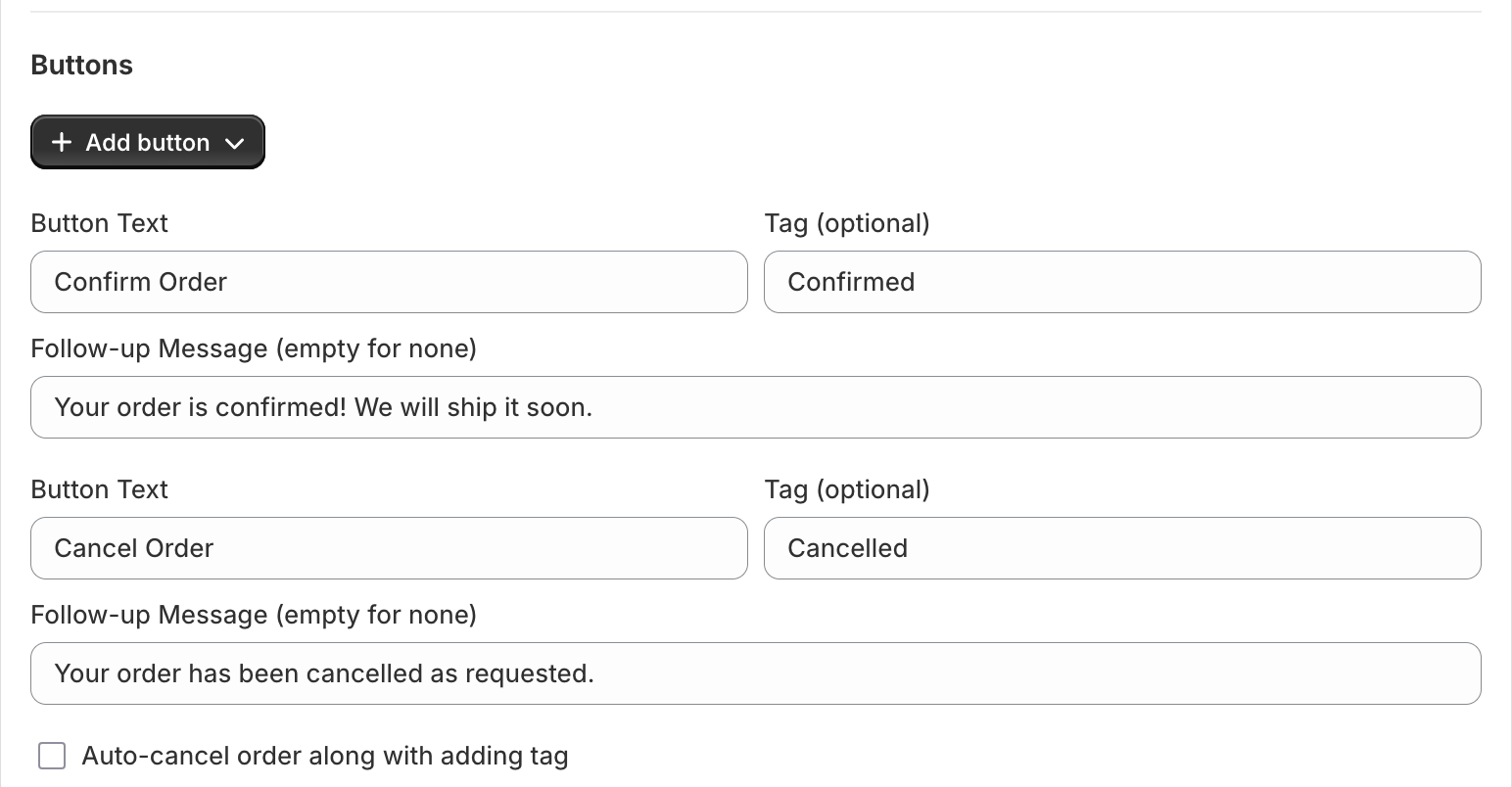
Whapi confirms Shopify COD orders by sending each customer a WhatsApp message with Confirm Order and Cancel Order buttons, then tagging the order in Shopify with their answer. It works on Meta’s official WhatsApp Business API from your own number.
- A customer places a COD order on your Shopify store.
- After the delay you choose, Whapi sends a WhatsApp message with the order number, the total and two buttons.
- The customer taps Confirm Order or Cancel Order. You can send a different follow-up for each answer.
- Whapi adds the tag you chose, such as Confirmed or Cancelled, so your team filters orders and ships the confirmed ones.
The message is a WhatsApp template with Shopify variables such as {{customer_first_name}}, {{order_number}} and {{total_price}}. Meta usually puts order confirmations in the Utility category, and Meta decides the category when it reviews the template. The COD order confirmation templates page has copy-ready versions in English, Arabic and Roman Urdu.
What each confirmation costs
Each confirmation costs one Meta Utility message at the rate for the customer’s country, paid to Meta with no markup from Whapi. Since October 1, 2026, Meta charges Utility templates even when the customer messaged you in the last 24 hours, unless the message falls inside a free entry point window from a Click to WhatsApp ad.
| Customer’s country | Per confirmation | 1,000 confirmations |
|---|---|---|
| Pakistan | $0.0150 | $15.00 |
| Saudi Arabia | $0.0107 | $10.70 |
| United Arab Emirates | $0.0157 | $15.70 |
| Morocco | $0.0230 | $23.00 |
| Kuwait | $0.0440 | $44.00 |
COD confirmation is included in Whapi Pro ($18.99 per month) and Team ($45 per month), both with a 7-day free trial. The COD confirmation feature page shows the full flow.
Shopify COD launch checklist
Before you switch on cash on delivery, run through this list:
- COD is active in Settings > Payments, with clear Additional details and Payment instructions.
- Your checkout collects a phone number on every order, so you can reach each COD customer on WhatsApp.
- Your courier collects cash in the cities you sell to, and you know its collection fee and payout schedule.
- You have decided whether COD has an order value cap or excluded products, and installed an app if it does.
- The cost of cash collection is in your shipping rates, or a COD fee app is set up.
- Every COD order gets a WhatsApp confirmation before it is handed to the courier.
- Customers get WhatsApp shipping updates from your Shopify fulfillment and tracking data once the parcel ships.
- Someone marks orders as paid when each courier remittance arrives.
Selling in a specific market? See the country guides for Shopify in Pakistan, Shopify in the UAE and Shopify in Saudi Arabia.
What COD stores say about confirming orders with Whapi
Whapi is rated 5 stars by 39 merchants on the Shopify App Store.
Confirm bot is a great app working very fast and smooth for me I have used many others but failed but this app is great
Active Patches
Pakistan · Shopify App Store review, November 24, 2025
Perfect application for confirming your orders, 100% recommended.
Balenza
Pakistan · Shopify App Store review, February 22, 2026
perfect for confirmation
CYRIS
Pakistan · Shopify App Store review, July 1, 2026
Shopify cash on delivery questions
Yes. Shopify supports cash on delivery as a manual payment method. You turn it on in Settings > Payments by choosing Cash on Delivery (COD) from the manual payment methods. COD orders are created as unpaid, and you mark them as paid after the courier hands you the cash.
In your Shopify admin, go to Settings > Payments. In the Payment providers section, select Cash on Delivery (COD) from the manual payment methods, add the Additional details and Payment instructions you want customers to see, then click the activate button. Place a test order to check how it looks at checkout.
No. Shopify’s help center says manual payment methods, including cash on delivery, are not charged third-party transaction fees. Your courier may still charge its own COD collection fee, and your Shopify plan fee applies as usual.
Not from the COD settings themselves. On Shopify’s Basic plan or higher you can install a payment customization app from the Shopify App Store to hide COD based on rules such as country, cart total or products. Shopify Plus stores can do the same with Shopify’s Checkout Blocks app. Shopify allows up to 25 active payment method customizations per store across all apps.
Shopify’s manual payment settings have no fee field, so a COD fee needs an app or a pricing workaround. Some COD form apps on the Shopify App Store, such as COD King, list COD fees and COD rules by location, cart value or product. The simpler alternative is to build the cost of cash collection into your shipping rates.
Shopify marks orders paid with a manual method, such as cash on delivery, as unpaid until you record the payment. When the courier pays you, open the order, click Collect payment in the Payment pending section and choose Mark as paid.
Install a WhatsApp confirmation app such as Whapi. When a COD order is placed, Whapi sends the customer a WhatsApp message with Confirm Order and Cancel Order buttons and tags the Shopify order with the answer, so you ship only confirmed orders. Whapi costs $18.99 per month on Pro, with a 7-day free trial, and Meta bills each message to you directly.
Meta charges each confirmation as a Utility template message at the rate for the customer’s country. On Meta’s rate card effective October 1, 2026, that is $0.0150 for a Pakistani number and $0.0107 for a Saudi number. Whapi passes Meta’s fees through with no markup.
A COD form app replaces the checkout with a short order form, often with OTP phone verification, upsells and rules that block suspicious orders. Shopify’s checkout keeps the standard flow and works with every payment method. You can use a COD form for faster ordering and still confirm each order on WhatsApp before shipping, because a verified phone number does not mean the customer will accept the parcel.
Sources
- Shopify Help Center: Manual payment methods (checked October 20, 2026)
- Shopify Help Center: Marking an order as paid (deferred payments) (checked October 20, 2026)
- Shopify Help Center: Pricing overview (transaction fees and manual payments) (checked October 20, 2026)
- Shopify Help Center: Checkout customization (payment customization apps) (checked October 20, 2026)
- Shopify Help Center: Checkout Blocks payment method customizations (checked October 20, 2026)
- Shopify Help Center: Checkout Blocks plan availability (checked October 20, 2026)
- Shopify.dev: Payment Customization Function API (checked October 20, 2026)
- Shopify App Store: COD King (checked October 20, 2026)
- Shopify App Store: Releasit COD Form & Upsells (checked October 20, 2026)
- Shopify App Store: EasySell COD Form & Upsells (checked October 20, 2026)
- Meta: WhatsApp Business Platform pricing (checked October 20, 2026)
Keep reading
- FeaturesWhatsApp Order Confirmation for ShopifyConfirm new Shopify orders on WhatsApp before you ship. Customers tap Confirm or Cancel, and Whapi tags the order in Shopify and sends the follow-up.Read
- TemplatesCOD Order Confirmation WhatsApp Message TemplatesWhatsApp templates that ask cash on delivery customers to confirm or cancel, with buttons, Shopify variables and follow-ups for each reply.Read
- IntegrationsUse Whapi with Releasit, EasySell & COD Form AppsHow Whapi confirms orders created by COD form apps like Releasit and EasySell, and what to check so the customer phone number reaches WhatsApp.Read
- BlogHow to Stop Fake COD Orders on Shopify: 7 FixesSeven ways to reduce fake and refused cash on delivery orders on Shopify, from order confirmation and COD limits to partial prepayment.Read
- ToolsCOD Profit Calculator: Cost of Refused OrdersCalculate how much refused and fake cash on delivery orders cost your store each month, and what confirming orders on WhatsApp could save.Read
- CompareBest COD Confirmation Apps for Shopify (2026)COD order confirmation apps for Shopify compared: WhatsApp, SMS and call-based options, pricing, and which fits your store. Written by Whapi.Read
Confirm every COD order on WhatsApp before it ships.
Join 5,000+ merchants using Whapi. Install it from the Shopify App Store, connect your WhatsApp Business number and turn on your first automation in minutes. Every plan starts with a 7-day free trial.