WhatsApp template rejected: how to find the reason and fix it
Meta rejects a WhatsApp message template when its variables are badly formatted, its content breaks a WhatsApp policy, or it duplicates a template you already have. The reason is shown in WhatsApp Manager and emailed to your admins. Fix the template and resubmit, or appeal if you think Meta got it wrong.
By the Whapi teamUpdated Checked against Meta’s template review guide
The short answer
- Meta reviews every new or edited template with automated systems and manual review. A decision can take up to 24 hours.
- The common rejection reasons Meta lists are badly formatted variables, content that breaks WhatsApp policy, and duplicates of an existing template.
- Rejected templates can be edited and resubmitted any number of times. Appeals must include a sample and are decided within 24 hours.
- Since April 9, 2025, a template submitted as Utility that Meta considers Marketing is approved as Marketing instead of rejected. You can request a category review within 60 days.
WhatsApp template rejected: where to find the reason
Meta tells you why a template was rejected in three places: WhatsApp Manager, Business Support Home and an email to your Meta Business Suite admins.
- WhatsApp Manager: hover over the suitcase icon (Account tools) and click Message templates. The template shows the status Rejected.
- Business Support Home: go to Account Overview, click View my accounts, select your business, then your WhatsApp Business account, then Rejected message templates.
- Email: Meta sends the decision and the reason to your admins.
Apps connected to your account receive the decision as a webhook with a reason code. If a tool shows you a code instead of a sentence, this is what it means:
| Reason code | What Meta says it means | What to change |
|---|---|---|
| INVALID_FORMAT | The template has an invalid format. | Variables, character limits or formatting. |
| INCORRECT_CATEGORY or TAG_CONTENT_MISMATCH | The content doesn’t match the category chosen when the template was created. | Change the category, or change the content to fit it. |
| PROMOTIONAL, ABUSIVE_CONTENT or SCAM | The template contains content that violates Meta’s policies. | Rewrite the content. |
Common reasons WhatsApp templates are rejected
WhatsApp templates are usually rejected for badly formatted variables, content that breaks WhatsApp policy, or duplicate wording, which are the reasons Meta lists in its template review guide. Meta’s component limits and sample rules catch the rest. Check your template against each of these five points.
1. Variable formatting
Variables are the placeholders Meta replaces with real values when the message is sent. Meta rejects templates when:
- a variable is missing a brace or has mismatched curly braces;
- a variable contains special characters such as #, $ or %;
- numbered variables are out of sequence, for example {{1}}, {{2}}, {{5}}, {{4}};
- there are too many variables for the length of the message;
- the message starts or ends with a variable.
Whapi shows variables by name, such as {{customer_first_name}}. If you write named variables yourself, Meta requires lowercase letters and underscores inside double braces.
2. Content that breaks WhatsApp policy
Meta rejects templates whose content breaks the WhatsApp Business or Commerce policies, including:
- asking customers for sensitive identifiers, such as full card numbers, bank account numbers or national ID numbers, or for documents that contain them (partial identifiers, such as the last 4 digits, are allowed);
- threatening customers, for example with legal action or public shaming;
- selling goods or services that the WhatsApp Business Messaging Policy restricts, such as firearms, alcohol, tobacco and drugs.
3. Duplicate templates
A template with the same body and footer wording as one you already have is rejected as a duplicate. The notification in Business Support Home names the existing template and its language. Change the wording or use the existing template.
4. Text that is too long
Every part of a template has a limit. These are the ones that trip people up most:
| Template part | Limit |
|---|---|
| Body text | 1,024 characters |
| Text header | 60 characters, 1 variable |
| Footer | 60 characters |
| Button label | 25 characters |
| Buttons per template | Up to 10 in total, with at most 2 URL buttons and 1 phone number button |
5. Missing sample values
If a template uses variables, you must include sample values, and a sample image or document for media headers. Samples let the reviewer see the message as the customer will. Write samples that look like real data, such as a first name and an order number, not placeholders like “test”.
Rejected vs fixed: three order template examples
Each example below pairs a template that breaks one of Meta’s rules with a fixed version written with Whapi variables. Meta decides the final category, so the one shown is the likely outcome, not a promise.
{{customer_first_name}} confirm order {{order_number}} now or it will be cancelled and your account blocked. Total: {{total_price}}Hi {{customer_first_name}}, thanks for your order {{order_number}} from {{store_name}}. Your order total is {{total_price}}. Please confirm your order so we can ship it.
Buttons (quick reply): Confirm Order · Cancel OrderHi {{customer_first_name}}: {{order_number}}, {{order_items}}, {{total_price}}, {{shipping_address}}. OK?Hi {{customer_first_name}}, your order {{order_number}} from {{store_name}} is confirmed.
Items: {{order_items}}
Total: {{total_price}}
Delivery address: {{shipping_address}}
We will message you again when your order ships.Hi {{customer_first_name}}, your order {{order_number}} has shipped. Track it here: {{tracking_url}}. Use code THANKS10 for 10% off your next order!Hi {{customer_first_name}}, your order {{order_number}} from {{store_name}} has shipped. You can follow the delivery with the button below.
Button (URL): Track orderFor ready-made versions of these messages, see our shipping update templates and the full WhatsApp message template library.
How to fix a rejected WhatsApp template and resubmit it
To fix a rejected template, edit the part Meta flagged and submit it again, or appeal if you think the decision is wrong. These steps cover both:
Read the rejection reason
Open WhatsApp Manager, go to Account tools > Message templates and open the rejected template. Meta also emails the reason to your Meta Business Suite admins and lists it in Business Support Home.
Fix the variables
Make sure every variable has matching double curly braces, contains no special characters such as #, $ or %, and is not at the very start or end of the message. Keep numbered variables in order, and add text if you have many variables in a short message.
Remove anything that breaks WhatsApp policy
Delete requests for full card numbers, bank account numbers or national ID numbers, threats of legal action or public shaming, and anything that breaks the WhatsApp Commerce Policy.
Match the content to the category
A Utility template must be about the customer’s own order or account and contain no promotion. If the message includes an offer, a discount code or product suggestions, submit it as Marketing or remove the promotional part.
Add sample values
Give a realistic example for every variable, such as a first name and an order number. Meta requires samples for templates with variables, and they help reviewers see the final message.
Resubmit or appeal
Edit the template and submit it again. Rejected templates can be edited any number of times. If you believe the rejection is wrong, file an appeal with a sample instead.
Wait for the decision
Meta says an approval decision can take up to 24 hours, and appeals are decided within 24 hours. You get a WhatsApp Manager notification and an email when it is done.
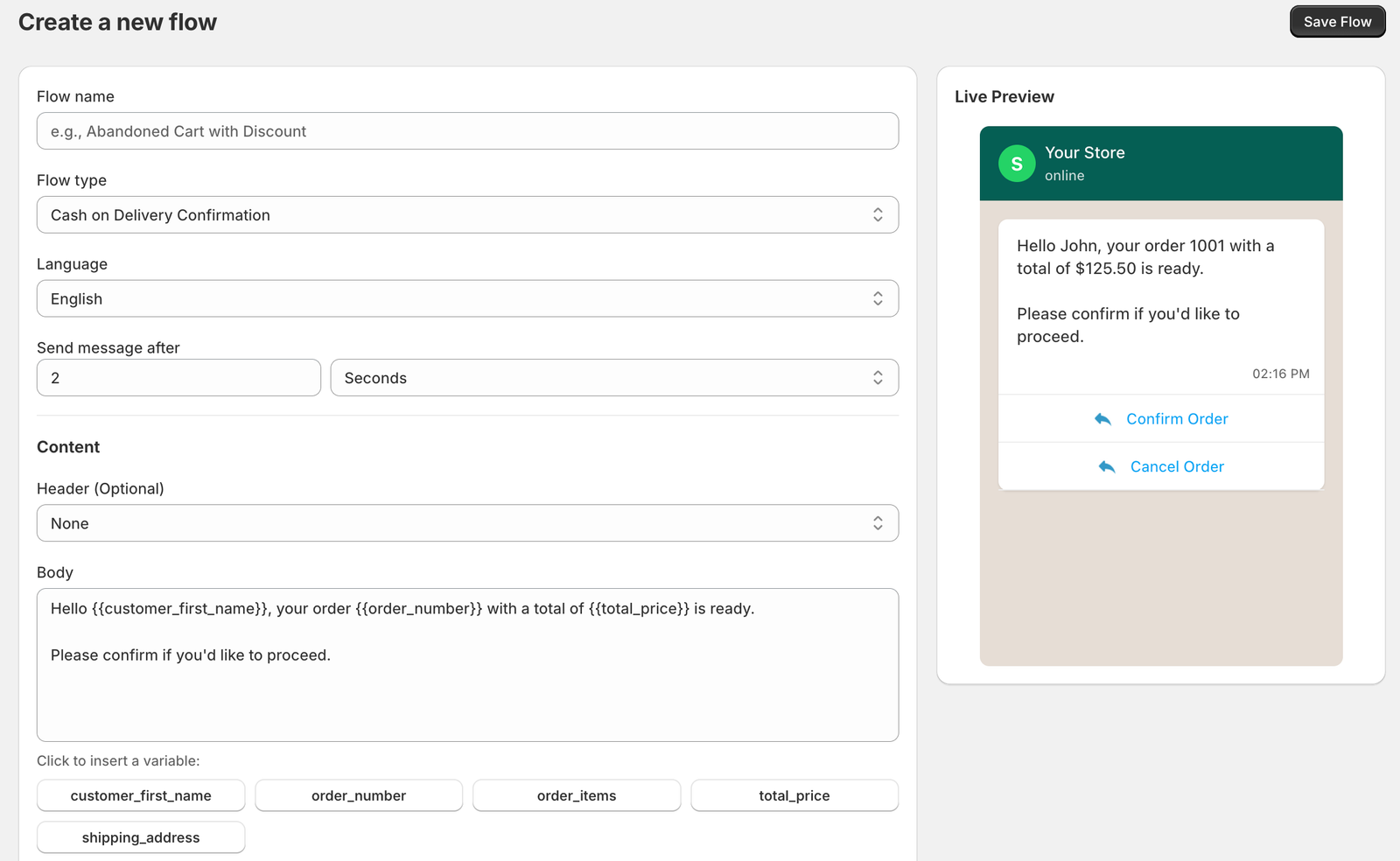
If the template belongs to a Whapi flow, edit the message in the flow builder, where a live preview shows the WhatsApp message with your variables. Like any new or edited template, it goes to Meta for review and starts sending once Meta approves it.
When Meta approves your template as Marketing instead
A template submitted as Utility that Meta reads as Marketing is approved as Marketing, not rejected. Meta made this the default on April 9, 2025. Utility templates must be non-promotional and about the customer’s own order, account or request. Anything that mixes an order update with an offer, a discount or a product suggestion is Marketing. Our utility vs marketing templates guide walks through the rules with examples.
The category matters because Meta charges Marketing at a higher rate than Utility in every market. This is what an order message approved as Marketing adds per 1,000 sends:
| Customer’s country | Utility template | Marketing template | Extra cost per 1,000 messages sent as Marketing |
|---|---|---|---|
| Germany | $0.0550 | $0.1365 | $81.50 |
| United Kingdom | $0.0220 | $0.0635 | $41.50 |
| France | $0.0300 | $0.0859 | $55.90 |
| Italy | $0.0300 | $0.0795 | $49.50 |
| Spain | $0.0200 | $0.0707 | $50.70 |
| United States and Canada (North America) | $0.0034 | $0.0250 | $21.60 |
| United Arab Emirates | $0.0157 | $0.0576 | $41.90 |
If you think Meta got the category wrong, you can request a category review within 60 days. In WhatsApp Manager, open Message Templates, click Go to Business Support on the banner, choose Template Category Updates, select the templates and click Request Review.
When an approved template stops sending
An approved template can still be paused or disabled if customers react badly to it. Meta rates each approved template on feedback and read rates. A template that reaches low quality is paused for 3 hours the first time, 6 hours the second time, and disabled the third time. These are the errors you’ll see when you send a template that isn’t usable:
| Code | What Meta says | What to do |
|---|---|---|
| 132001 | The template does not exist in the specified language or the template has not been approved. | Check the name, the language code and the approval status. |
| 132007 | Template content violates a WhatsApp policy. | Rewrite the template using Meta’s review guide. |
| 132015 | Template is paused due to low quality so it cannot be sent in a template message. | Edit it to improve its quality, or wait for the pause to end. |
| 132016 | Template has been paused too many times due to low quality and is now permanently disabled. | Create a new template with different content. |
Edit and template limits to know before you resubmit
Meta limits how often you can edit a template and how many you can have, so plan your fixes. The limits that apply to most stores:
- Only templates with an Approved, Rejected or Paused status can be edited. Wait until a review finishes.
- Rejected and paused templates can be edited an unlimited number of times.
- Approved templates can be edited up to 10 times in 30 days, or once in 24 hours.
- Meta’s template management rules say the category of an approved template can’t be edited, so create a new template in the right category instead.
- Template names use lowercase letters, numbers and underscores only, up to 512 characters.
- Each language is a separate template, and each one counts toward your limit.
- Each WhatsApp Business account can hold 250 templates if your business portfolio is unverified, and up to 6,000 once it is verified and a number has an approved display name. See Meta business verification for WhatsApp.
For other errors, from payment problems to undeliverable numbers, see the WhatsApp Business API troubleshooting hub.
Template rejection questions
The common reasons Meta lists are badly formatted variables (mismatched braces, special characters, a variable at the start or end, too many variables for the length), content that breaks WhatsApp policy (such as asking for national ID or card numbers, or threatening customers), and a duplicate of a template you already have. Meta can also reject content that does not match the category you chose. The exact reason is in WhatsApp Manager and in the rejection email.
Meta says an approval decision can take up to 24 hours after you submit a template. Some templates are approved within minutes, but plan for up to a day. When the decision is made, Meta shows a notification in WhatsApp Manager and emails your Meta Business Suite admins.
Yes. In WhatsApp Manager, open Message templates, select the rejected template, edit it if needed, click Add Sample to add example values and media, then click Submit. Appeals must include a sample, and Meta says the appeal is reviewed and decided within 24 hours.
As many times as you need. Meta allows unlimited edits to rejected and paused templates. Approved templates are limited to 10 edits in a 30-day window, or 1 edit in a 24-hour window.
Since April 9, 2025, if you submit a template as Utility and Meta decides its content is Marketing, Meta approves it as Marketing instead of rejecting it. This usually happens when an order message also contains an offer, a discount or product suggestions. You can request a category review within 60 days, or remove the promotional content and submit a new Utility template.
You can, but Meta will treat the template as Marketing. Meta’s guidelines say templates with mixed content, such as an order update with a promotion, are Marketing. That means a higher price per message in every market, and it can lower delivery because of per-user marketing limits. Keep the discount for a separate marketing message.
Yes. Each template has a language code, and Meta does not translate templates, so you create one template per language. Templates can share a name across languages, and each language version counts toward your template limit.
The send fails with error 132001, which Meta describes as "The template does not exist in the specified language or the template has not been approved." Only templates with an approved (Active) status can be sent.
Sources
- Meta: Template review and common rejection reasons (checked October 20, 2026)
- Meta: Template categorization guidelines (checked October 20, 2026)
- Meta: Template fundamentals (statuses, limits, parameters) (checked October 20, 2026)
- Meta: Template management (edit limits) (checked October 20, 2026)
- Meta: Template components (character and button limits) (checked October 20, 2026)
- Meta: message_template_status_update webhook (rejection reasons) (checked October 20, 2026)
- Meta: Template pausing (checked October 20, 2026)
- Meta: WhatsApp error codes (132001, 132007, 132015, 132016, 131064) (checked October 20, 2026)
- WhatsApp Business Messaging Policy (checked October 20, 2026)
- Meta: Pricing on the WhatsApp Business Platform (checked October 20, 2026)
Keep reading
- TemplatesWhatsApp Utility vs Marketing Templates: Rules & CostHow Meta decides if a WhatsApp template is utility, marketing or authentication, why it matters for cost, and how to avoid recategorization.Read
- TemplatesAbandoned Cart WhatsApp Message Templates (Shopify)Abandoned checkout WhatsApp templates for a first reminder, a follow-up and a discount offer, with timing advice and Shopify variables.Read
- TemplatesWhatsApp Message Templates for Shopify StoresCopy-ready WhatsApp templates for abandoned carts, order confirmations, shipping updates, review requests, Black Friday and campaigns, in several languages.Read
- HelpMeta Business Verification for WhatsApp: Steps & TipsWhen WhatsApp needs Meta business verification, which documents Meta accepts, how long it takes and what to do if verification is rejected.Read
- HelpWhatsApp Error 131049: Message Not Delivered (Fix)Error 131049 means Meta chose not to deliver a marketing message to keep engagement healthy. Why it happens and what you can change.Read
- HelpWhatsApp Business API Errors & FixesFix common WhatsApp Business API problems: error codes, payment issues, undelivered messages, template rejections and coexistence setup.Read
Write WhatsApp templates with a live preview in Whapi.
Join 5,000+ merchants using Whapi. Install it from the Shopify App Store, connect your WhatsApp Business number and turn on your first automation in minutes. Every plan starts with a 7-day free trial.